
Introduction
If you are trying to learn how to find not provided keywords in Google Analytics, the most important fact is also the most frustrating: you cannot fully restore every organic search term and connect it to an individual GA4 session. However, you can recover valuable query data through Google Search Console, connect it with GA4, and analyse performance at landing-page level.
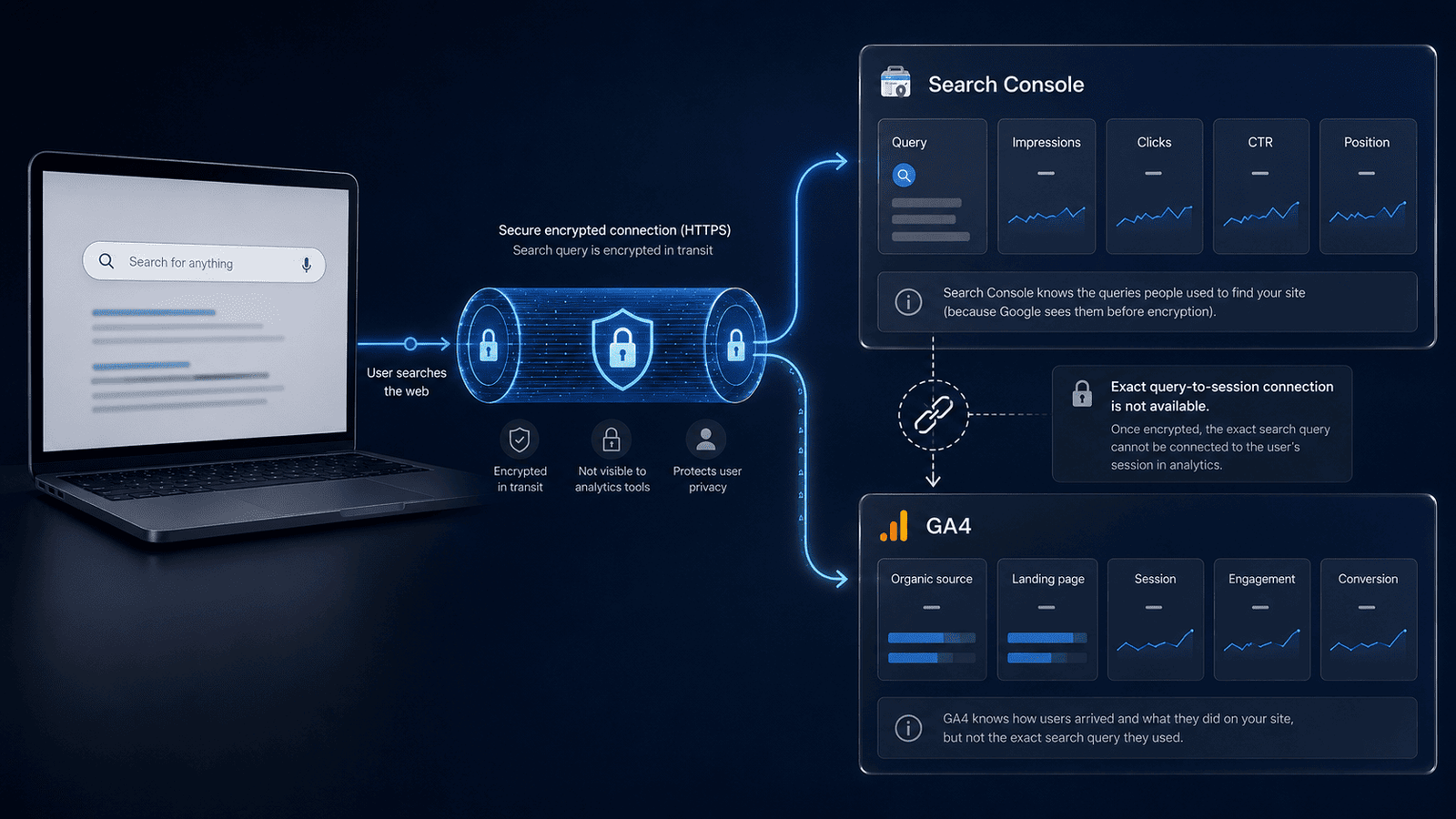
The phrase (_not provided_) does not usually mean your tracking is broken. It appears because most Google searches take place over HTTPS, so the organic keyword is not passed into the Analytics keyword dimension. This article explains what is hidden, what remains available, how to connect Search Console to GA4, and how to turn incomplete query data into practical SEO decisions.
What Does Not Provided Mean in Google Analytics?
When Google Analytics shows (_not provided_), it means Analytics knows that a visit came through organic search but did not receive the search phrase used by the visitor.
Google can still classify the traffic source as Google and the medium as organic. However, the keyword itself is withheld.
Google Analytics focuses mainly on what visitors do after arriving on your website. While Google Search Console focuses on how your pages perform before and during the click from Google Search. Google recommends using the two products together because they cover different parts of the visitor journey.
Why Are Organic Keywords Hidden?
The loss of organic keyword detail is connected to encrypted search and user privacy.
| Reporting product | Main purpose | Examples of available data |
|---|---|---|
| Google Search Console | Performance in Google Search | Queries, impressions, clicks, CTR, average position and pages |
| Google Analytics 4 | Behaviour after a visit begins | Sessions, users, engagement, events, key events and landing-page activity |
Not Provided vs Not Set
| Report value | What it usually means | Can you often troubleshoot it? |
|---|---|---|
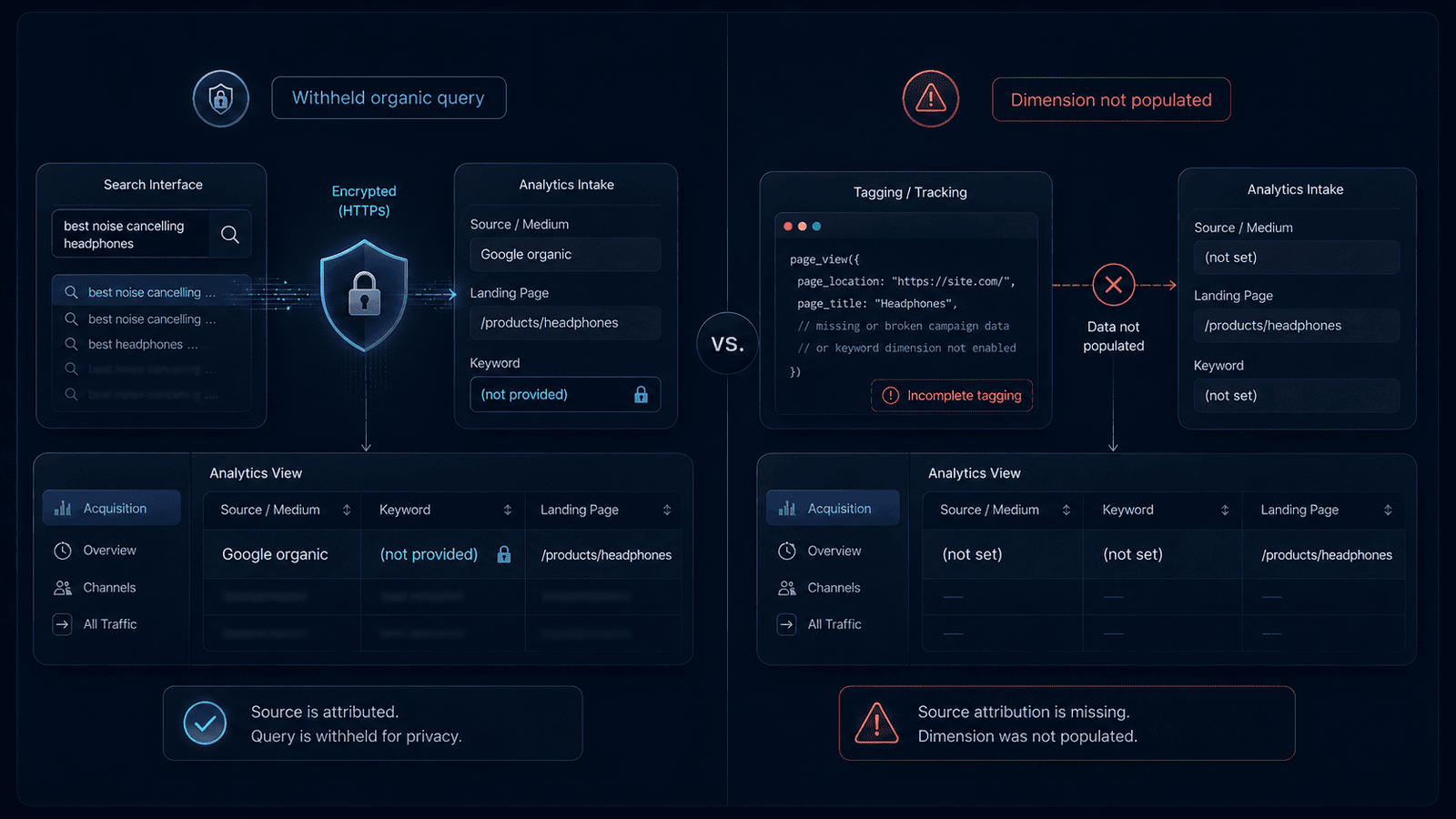
(_not provided_) | An organic search keyword was not passed to Analytics | Usually no; use Search Console for query data |
(not set) | Analytics did not receive enough information to populate a dimension | Sometimes; the cause may involve setup, tagging or unavailable parameters |
| Direct | Analytics could not identify a referring source under its processing rules | Sometimes; investigate tagging, redirects and attribution |
| Organic search | Traffic was classified as coming from an unpaid search result | Yes, but the exact query may remain unavailable |
Can You Completely Unlock Not Provided Keywords?
No legitimate method can completely reverse (_not provided_) and restore every hidden organic search phrase inside GA4.
What you can recover
Google Search Console can provide:
- Search queries that generated impressions
- Queries that led to clicks
- Search impressions
- Organic clicks
- Click-through rate
- Average search position
- Landing pages appearing in search
- Country and device breakdowns
- Performance changes over selected periods
| Method | Best use | Main limitation | Cost |
|---|---|---|---|
| Search Console Performance report | Finding actual Google queries | Some queries are anonymized | Free |
| Search Console connection in GA4 | Viewing search and landing-page reports in GA4 | No perfect query-to-session match | Free |
| Landing-page comparison | Connecting search demand with onsite results | Requires careful inference | Free |
| Looker Studio | Showing Search Console and GA4 patterns together | Sources still use different metrics | Free for standard use |
| Third-party SEO platforms | Estimating rankings and competitor keywords | Estimates do not decrypt Analytics data | Often paid |
| Internal search and customer data | Understanding visitor language and intent | Does not reveal the original Google query | Usually free |
Find Not Provided Keywords in Google Analytics
The most reliable approach starts in Google Search Console, not in a normal GA4 traffic-acquisition report.
Step 1: Verify Your Website in Search Console
You need a verified Search Console property covering the same website measured by your GA4 web data stream.
New to GA4 as well? Review this Google Analytics for beginners guide before connecting the two platforms.
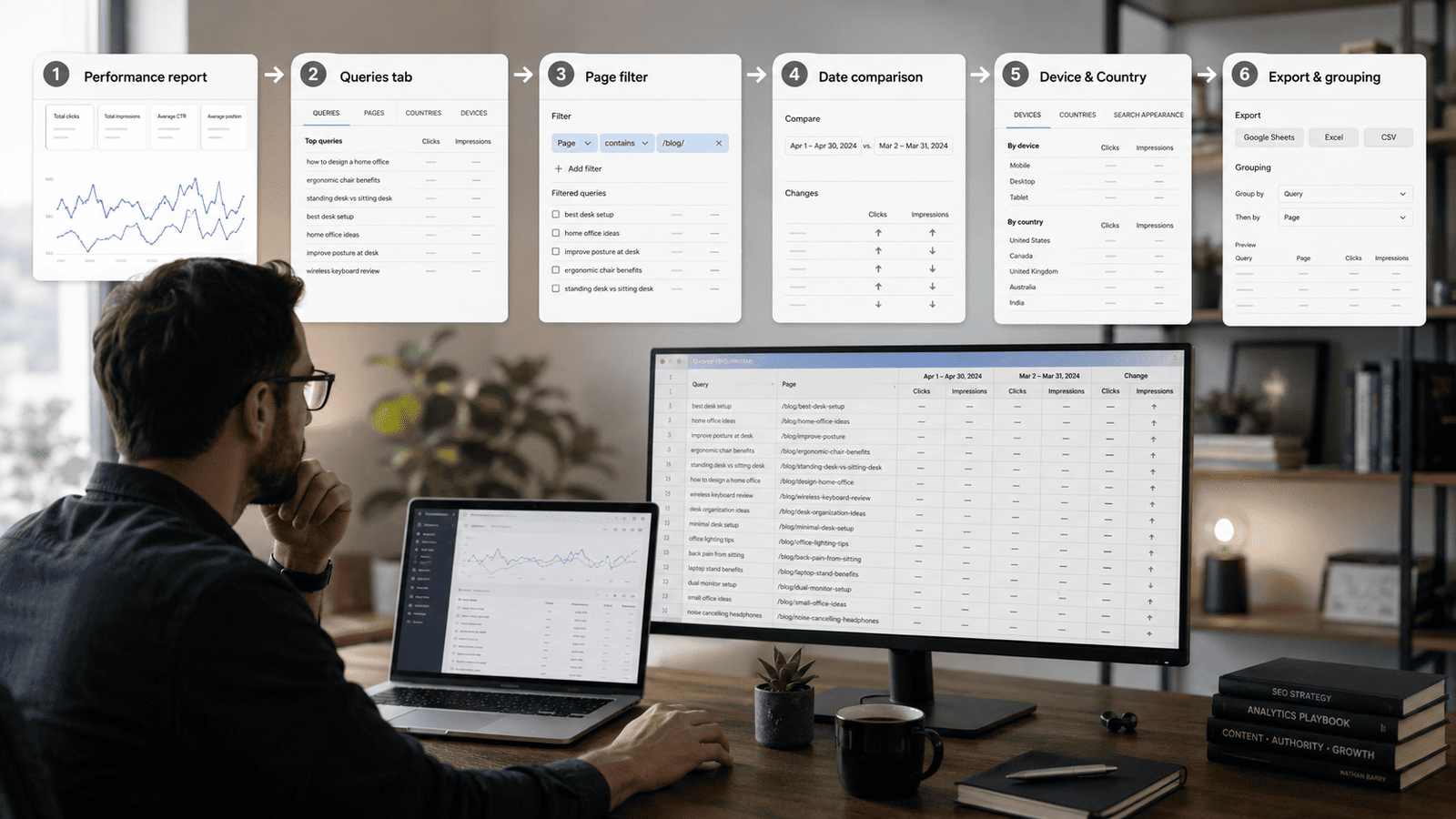
Step 2: Open the Search Performance Report
In Search Console, open:
Performance -> Search results
Enable the core metrics:
- Total clicks
- Total impressions
- Average CTR
- Average position
Step 3: Start With Queries, but Do Not Stop There
Review each query alongside:
- The ranking page
- Search intent
- Click-through rate
- Current page content
- Device type
- Country
- Date trend
Step 4: Filter by Landing Page
Select a specific page in Search Console, then review the Queries tab again.
Step 5: Compare Date Ranges
Useful comparisons include:
- The last 28 days versus the previous 28 days
- The last three months versus the previous period
- The current year versus the previous year
- Before and after a major content update
- Before and after a title or meta-description change
Step 6: Segment by Device and Country
Mobile and desktop results can differ. The same is true across countries.
Step 7: Export the Query Data
Common destinations include:
- Google Sheets
- Microsoft Excel
- CSV
- Looker Studio
- Search Console API
- BigQuery bulk export for advanced analysis
Connect Search Console to GA4
Connecting Search Console does not restore the old keyword dimension. However, it makes official search-performance reports available within GA4.
Linking Steps
- Open Admin.
- Find Product links.
- Select Search Console links.
- Choose Link.
- Select the Search Console property you manage.
- Confirm the property.
- Select the correct GA4 web data stream.
- Review the configuration.
- Submit the connection.
Combine Queries With Landing-Page Data
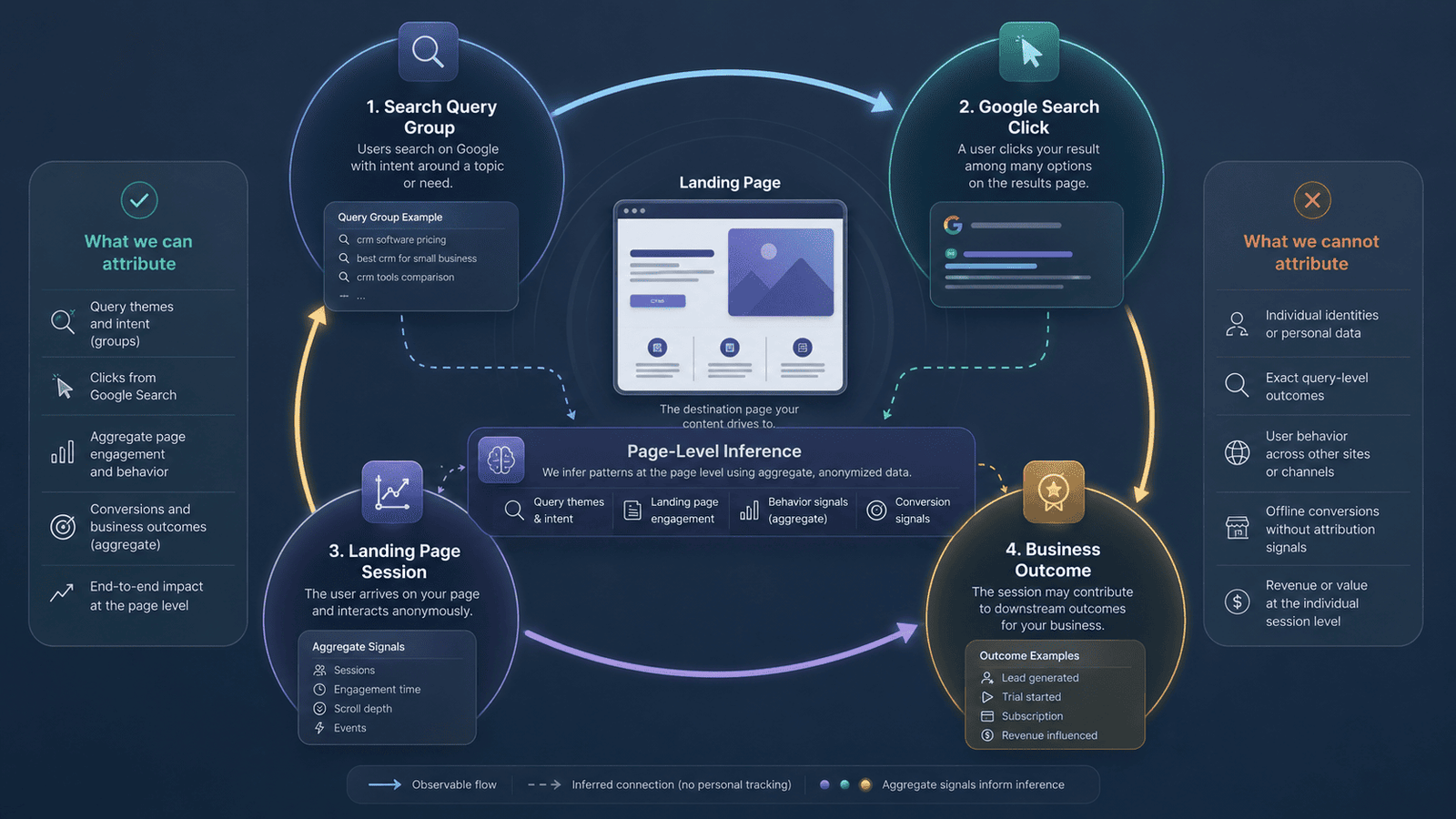
The strongest workflow is not to force Search Console and GA4 into one perfect dataset. Instead, use each product for the part it measures best.
How to Turn Recovered Keywords Into SEO Actions
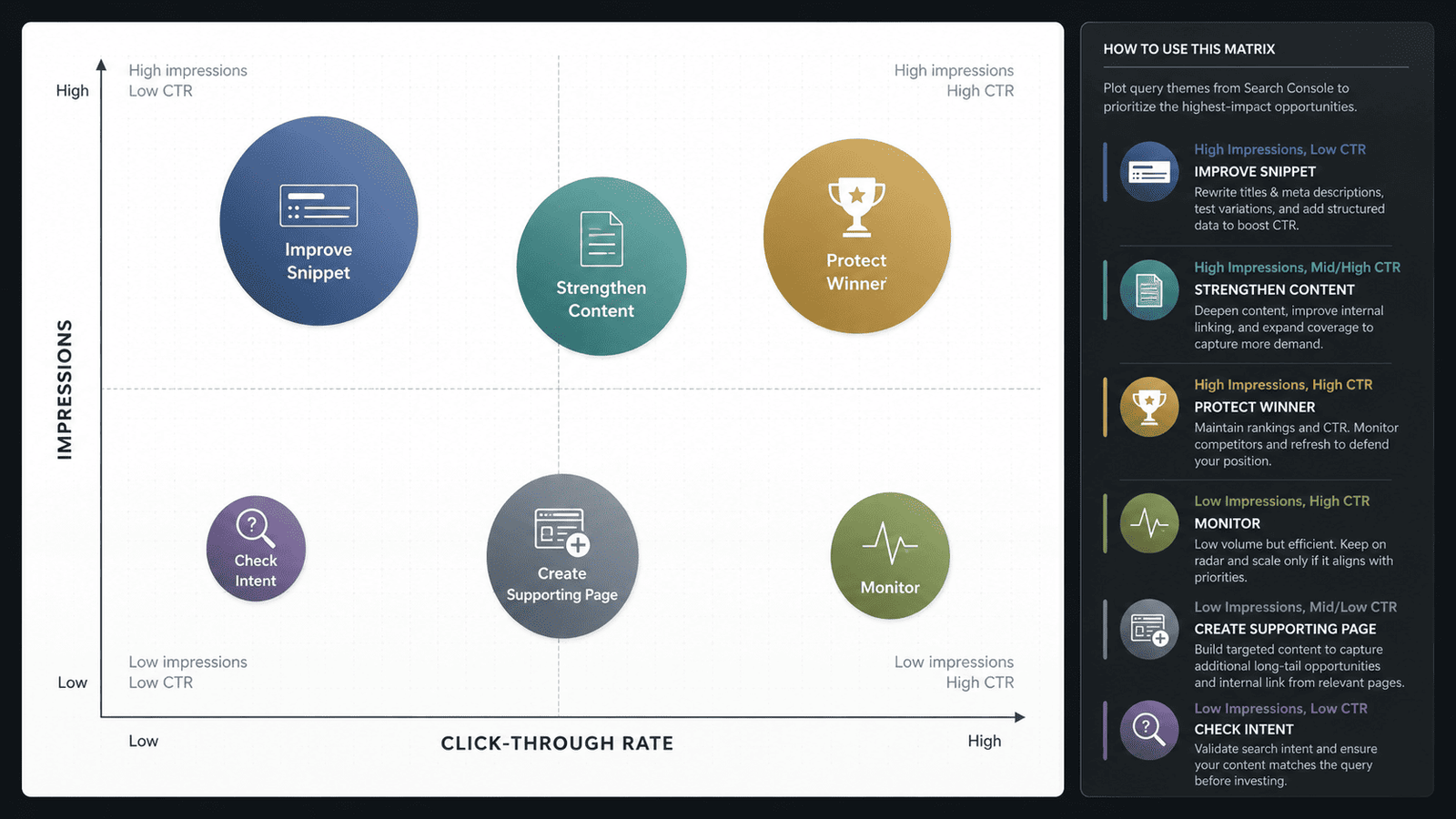
Find High-Impression, Low-CTR Queries
Find Queries Close to Stronger Visibility
Identify Content Gaps
Find Keyword Cannibalization
Separate Branded and Non-Branded Queries
Find Pages With Strong Search Traffic but Weak Onsite Results
Build Query Clusters, Not Stuffed Keyword Lists
Why Search Console and GA4 Numbers Differ
Do not expect Search Console clicks to equal GA4 sessions.
A Practical Monthly Workflow
1. Review Overall Organic Performance
2. Find Your Largest Query Changes
3. Review Important Landing Pages
4. Assign One Clear Action
5. Keep an Annotation Log

Free SEO Tools to Improve Your Rankings
Once you have uncovered your hidden keywords, take action with our free SEO tools. Score and refine your page titles using the SEO Title Analyzer. Add structured data with the Schema Markup Generator. Check that your pages are crawlable with the Page Indexability Checker. If your site targets multiple languages, validate your setup with the Hreflang Generator & Validator. And verify your blog images meet best practices using the Blog Image Size Checker.
Conclusion
Learning how to find not provided keywords in Google Analytics is less about recovering a hidden list and more about using the right reports together. Search Console provides the strongest available view of organic Google queries, while GA4 shows what happens on the website after the visit begins.
Connect the platforms, publish the Search Console report collection and evaluate queries at landing-page level. Then use impressions, clicks, CTR, position, engagement and key events to identify practical SEO actions. For a complete step-by-step setup guide, see Track Keywords in Google Analytics: 7 Steps for 2026.
Frequently Asked Questions
Why does Google Analytics say keyword not provided?
Google Analytics displays (_not provided_) because most Google searches take place through HTTPS.
Can you completely unlock not provided keywords?
No. You can recover reportable, aggregated Google Search queries through Search Console, but you cannot restore every hidden phrase.
How do I find organic search keywords in GA4?
Connect your Search Console property to your GA4 web data stream. Then publish the Search Console collection through the GA4 Reports Library.
Why can't I see Search Console reports in GA4?
The Search Console collection is unpublished by default.
Can GA4 tell me which organic keyword generated a conversion?
Not reliably at individual-query level in standard GA4 reporting.
What is the difference between not provided and not set?
(_Not provided_) usually relates to withheld organic search keywords. (Not set) means Analytics did not receive information needed to populate a selected dimension.
How long does Search Console data remain available in GA4?
Google states that Search Console keeps performance data for the last 16 months.
Is Search Console data available immediately in GA4?
No. Google states that Search Console data becomes available about 48 hours after collection.
Why are some queries missing from Search Console?
Search Console excludes some low-volume queries to protect privacy.
Why do Search Console clicks not equal GA4 sessions?
Clicks and sessions are different metrics processed by different systems.
Can third-party SEO tools reveal not provided keywords?
They can estimate ranking keywords but cannot decrypt the exact organic query behind every Analytics session.
Is Google Search Console free?
Yes. Google Search Console is available to verified website owners without a subscription charge.