
Google Analytics for Beginners: Complete Guide (2026)
If you run a website and have no idea where your visitors come from, google analytics for beginners is exactly where you need to start. Google Analytics 4 (GA4) is a free tool from Google that tracks who visits your site, how they found it, what they do on it, and whether they take any meaningful action.
More than 28 million websites worldwide rely on Google Analytics to make smarter decisions about their content, marketing, and products. Yet most beginners either never set it up properly or stare at the dashboard without knowing what any of it means.
This guide changes that. You will learn how to create a Google Analytics account from scratch, understand the core google analytics reports, read key metrics like sessions and bounce rate, measure your SEO performance, and avoid the six most common beginner mistakes. By the end, you will be comfortable navigating GA4 on your own -- no technical background required.
What Is Google Analytics and What Can It Do?
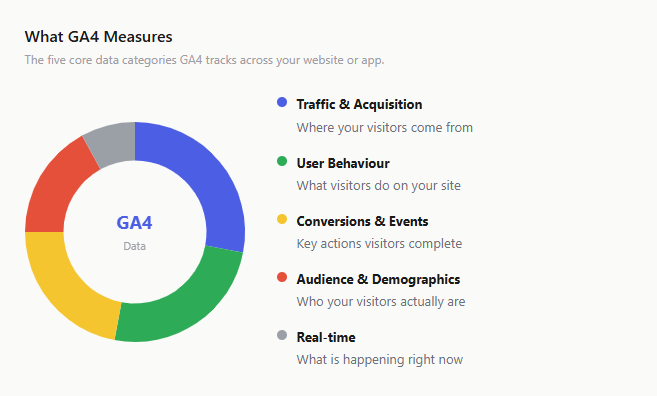
At its core, Google Analytics is a free web analytics platform that answers one fundamental question: what is happening on your website?
Think of it as a silent observer sitting on every page of your site. It records where each visitor came from, what pages they viewed, how long they stayed, and whether they did anything valuable like signing up for your newsletter or buying a product.
GA4 vs Universal Analytics -- What Changed?
Google officially shut down Universal Analytics (UA) on July 1, 2023. GA4 is the only version available now.
| Feature | Universal Analytics (Retired) | GA4 (Current) |
|---|---|---|
| Data model | Session-based (pageviews) | Event-based (every interaction is an event) |
| Cross-platform tracking | Web only | Web + app in one property |
| Bounce rate | Based on single-page sessions | Inverse of engagement rate |
| Free data retention | Unlimited | Up to 14 months (adjustable in Admin) |
| Machine learning insights | Limited | Built-in predictive metrics |
| Privacy controls | Basic | Cookieless measurement, consent mode |
Is Google Analytics Free?
Yes -- completely free for the vast majority of websites.

How to Create a Google Analytics Account
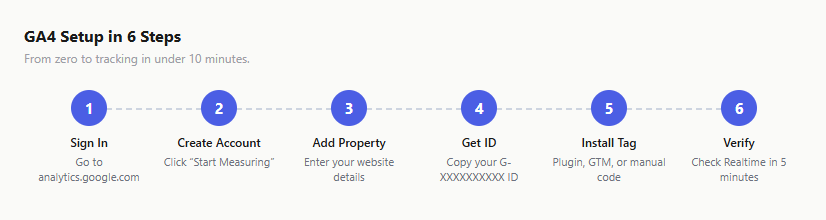
Setting up Google Analytics takes about ten minutes. You do not need any coding experience.
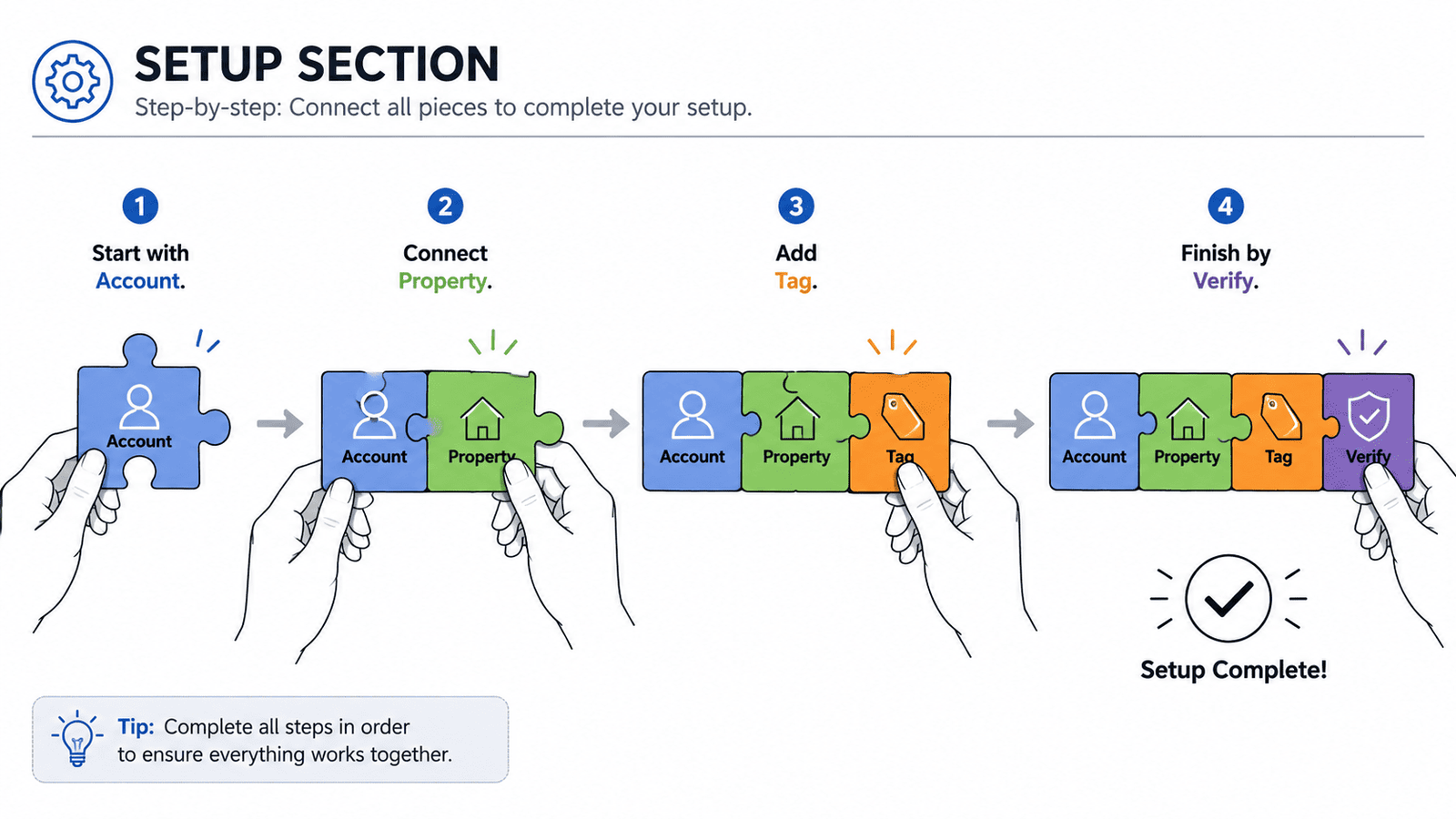
First, go to analytics.google.com and sign in with your Google account. Click "Start measuring" to begin the setup wizard.
Next, create a GA4 property. Enter your website name, select your reporting time zone and currency.
After creating the property, GA4 gives you a google analytics measurement ID. It looks like G-XXXXXXXXXX.
Finally, add the tracking tag to your website.
Adding GA4 to WordPress -- The Easiest Method
For WordPress sites, the simplest approach is the Site Kit by Google plugin.
Adding GA4 to Squarespace and Wix
On Squarespace, navigate to Settings -> Developer Tools -> External API Keys. On Wix, go to Marketing & SEO -> Marketing Integrations -> Google Analytics.
Understanding the Google Analytics Primary User Role
GA4 has four access levels: Administrator, Editor, Analyst (formerly Marketer), and Viewer.
Understanding the Google Analytics Dashboard
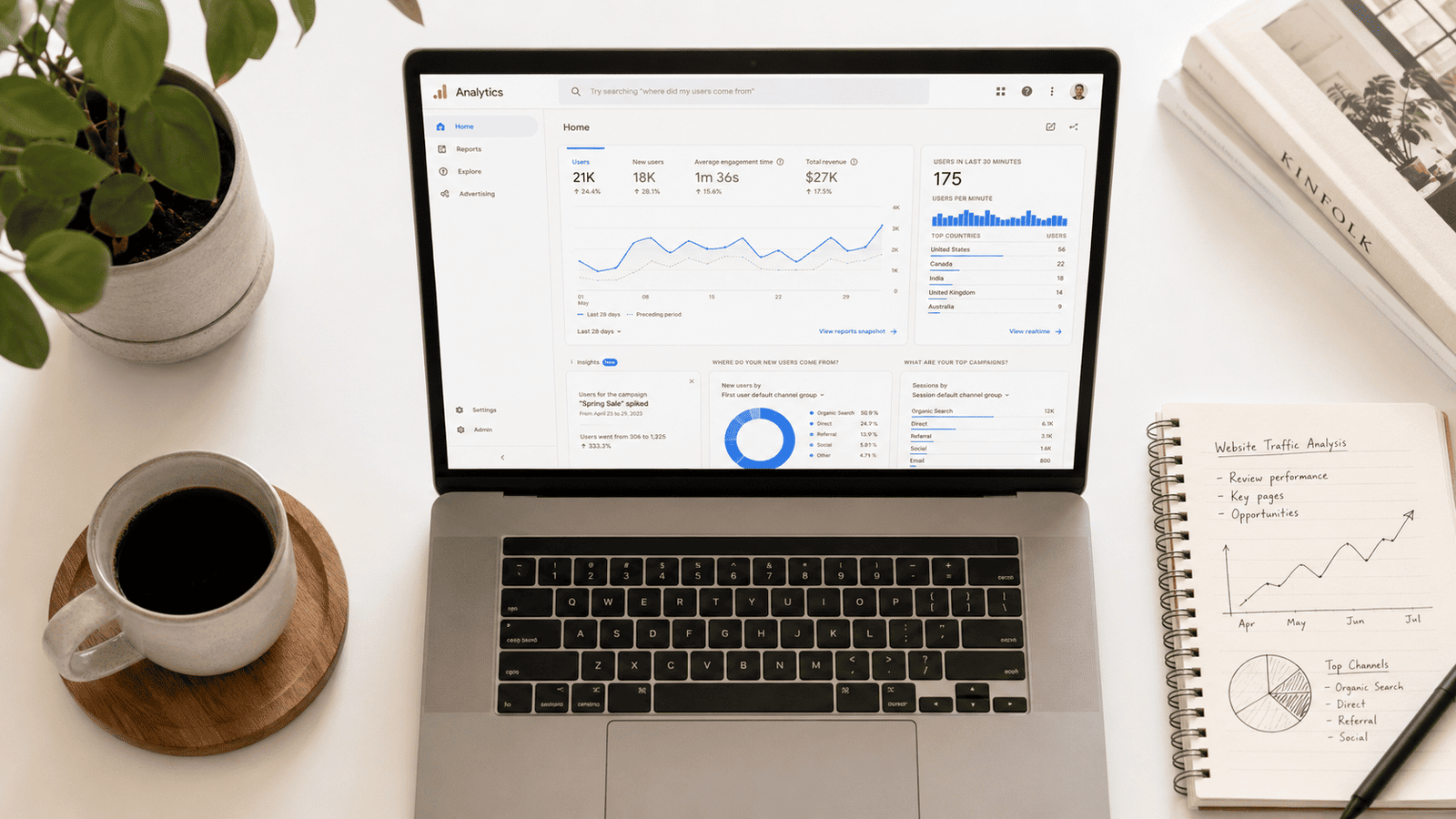
The Home screen shows a summary: how many users visited in the past 7 days, where they came from, and which pages performed best.
Below the home overview, GA4 organizes everything into a left sidebar: Reports, Explore, Advertising, and Admin.
Key Metrics for Google Analytics for Beginners
What Is a Session in Google Analytics?
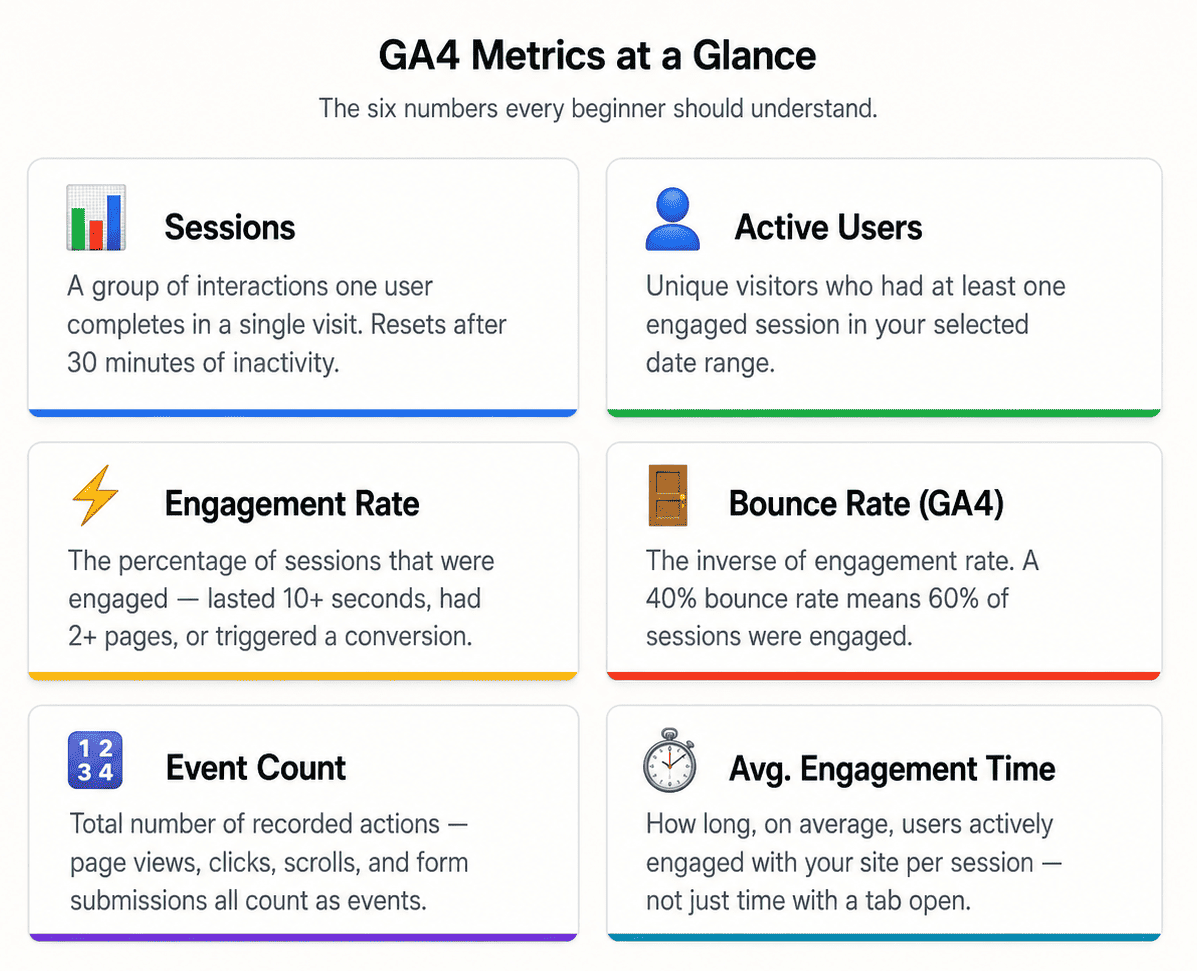
Sessions represent a single visit to your website. One user can generate multiple sessions. By default, GA4 ends a session after 30 minutes of inactivity.
What Are Active Users in Google Analytics?
The "Users" metric in GA4 refers to active users by default. An active user is someone who had at least one engaged session during your selected date range.
What Does Bounce Rate Mean in Google Analytics?
GA4 redefined bounce rate. It is simply the inverse of engagement rate. If 65% of your sessions are engaged, your bounce rate is 35%.
What Is a Metric in Google Analytics?
A metric is a number -- sessions, users, pageviews, bounce rate. A dimension is a descriptive attribute -- page title, country, traffic source, device type.
How to Read Google Analytics Reports
The Reports section in GA4 organizes your data into three main areas: Acquisition, Engagement, and Retention.
Acquisition Reports -- Where Your Traffic Comes From
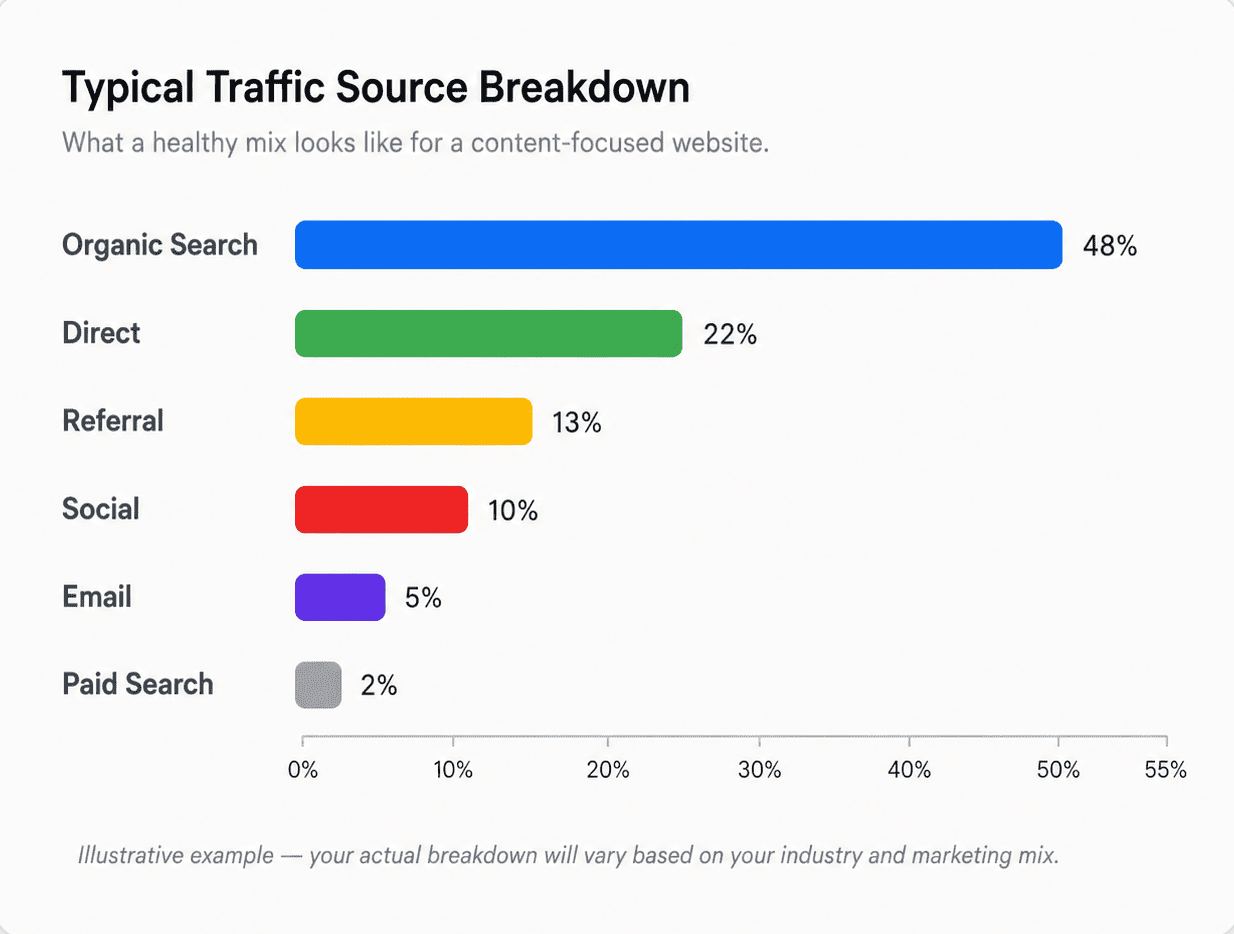
The Traffic Acquisition report breaks down every visit by channel: Organic Search, Direct, Referral, Social, Email, and Paid Search.
Engagement Reports -- What People Do on Your Site
The Pages and Screens report shows which pages get the most views, the highest engagement time, and the most events.
Retention and User Reports
The Retention report shows whether visitors return after their first visit.

How to Measure SEO with Google Analytics
For anyone focused on search engine optimization, the organic search acquisition report is the most important section in GA4.
Navigate to Reports -> Acquisition -> Traffic Acquisition, then look at the "Organic Search" row.
However, GA4 alone cannot show you which specific search queries brought visitors to your site. You need Google Search Console for that. See how to track keywords in Google Analytics for a step-by-step guide to connecting the two platforms.

Google Analytics for Beginners: 6 Common Mistakes to Avoid
Not filtering out your own visits.
Checking data too soon after setup.
Ignoring the date range selector.
Never verifying the tracking tag.
Skipping key event setup.
Not running a setup audit.
Free SEO Tools to Use Alongside Google Analytics
Once your GA4 setup is running, complement your analytics workflow with our free SEO tools. Use the SEO Title Analyzer to score your page headlines before publishing. Generate valid structured data with the Schema Markup Generator to help Google understand your content. Check whether your pages are discoverable with the Page Indexability Checker. And if you publish blog images, verify their dimensions with the Blog Image Size Checker to ensure fast load times.
Conclusion
Google Analytics is one of the most valuable free tools available to anyone running a website. Once you understand the basics -- setting up your property, reading your dashboard, interpreting acquisition and engagement reports, and connecting Search Console for keyword data -- you have everything you need to make evidence-based decisions about your content and marketing.
If you have not set up GA4 yet, now is the time. Open analytics.google.com, create your account, and install the tracking tag.
Frequently Asked Questions
Is Google Analytics free?
Yes. Google Analytics 4 is completely free for all website and app owners.
How long does it take for Google Analytics to show data after setup?
Standard reports typically need 24 to 48 hours before they display data.
What is the difference between sessions and users in Google Analytics?
A user is a unique individual. A session is a single visit. One user can create many sessions.
Do I need Google Tag Manager to use Google Analytics?
No. You can install GA4 directly using the tracking code snippet or a platform-specific plugin.
What does "not provided" mean in the keyword report?
Google encrypts search query data for user privacy. Learn how to find not provided keywords in Google Analytics using Search Console and landing-page analysis.
How do I know if my GA4 tracking tag is working?
Open your website in a browser, then check the Realtime report in GA4.
Does Google Analytics use cookies?
Yes. GA4 uses first-party cookies to identify returning visitors.
What are google analytics dashboard templates?
GA4 allows you to customize the reports that appear on your dashboard through the Library section.